 Descript
Descript Review: The Video Editor That Lets You Edit Like a Google Doc
Descript flips video editing on its head. Instead of dragging clips around a timeline, you edit your video by editing the transcript. Delete a sentence from the text and it disappears from the video. It sounds too good to be true, but after testing every feature, we can tell you it actually works. Here is everything you need to know.
Spratt Enterprise Editorial Team
Software reviewed and tested independently
Our Verdict
Descript is the fastest way to edit video and podcast content if you are not a professional editor. The text-based editing is genuinely revolutionary, the AI tools (filler word removal, retake detection, studio sound) save hours per video, and the Underlord AI assistant can add B-roll, layouts, and effects automatically. The Creator plan at $24/month is the sweet spot for most YouTubers and podcasters.
Best for: YouTubers, podcasters, course creators, coaches, and anyone who creates video or audio content regularly but does not want to learn Premiere Pro or Final Cut.
What Is Descript?
Descript is a video and audio editing platform built around one core idea: editing video should be as easy as editing a text document. When you upload a video, Descript automatically transcribes everything you said. That transcript becomes your editing interface. Highlight a sentence and delete it, and that section is cut from the video. Drag a paragraph to a different position, and the video rearranges to match.
On top of the text-based editing, Descript has built an increasingly powerful set of AI tools. It can remove filler words (um, uh, like) automatically, detect and remove retakes where you repeated yourself, shorten gaps between sentences, enhance your audio with studio-quality processing, fix your eye contact, remove your background (green screen without a green screen), and even regenerate words in your voice using AI.
There is also Underlord, Descript's AI assistant that can analyze your video, suggest improvements, add B-roll from a stock library, create text overlays, and generate short-form clips from your long-form content. In this Descript review, we cover every major feature and how it compares to traditional editors. For more tools like this, check our AI tools reviews.
Key Features
Text-Based Video Editing
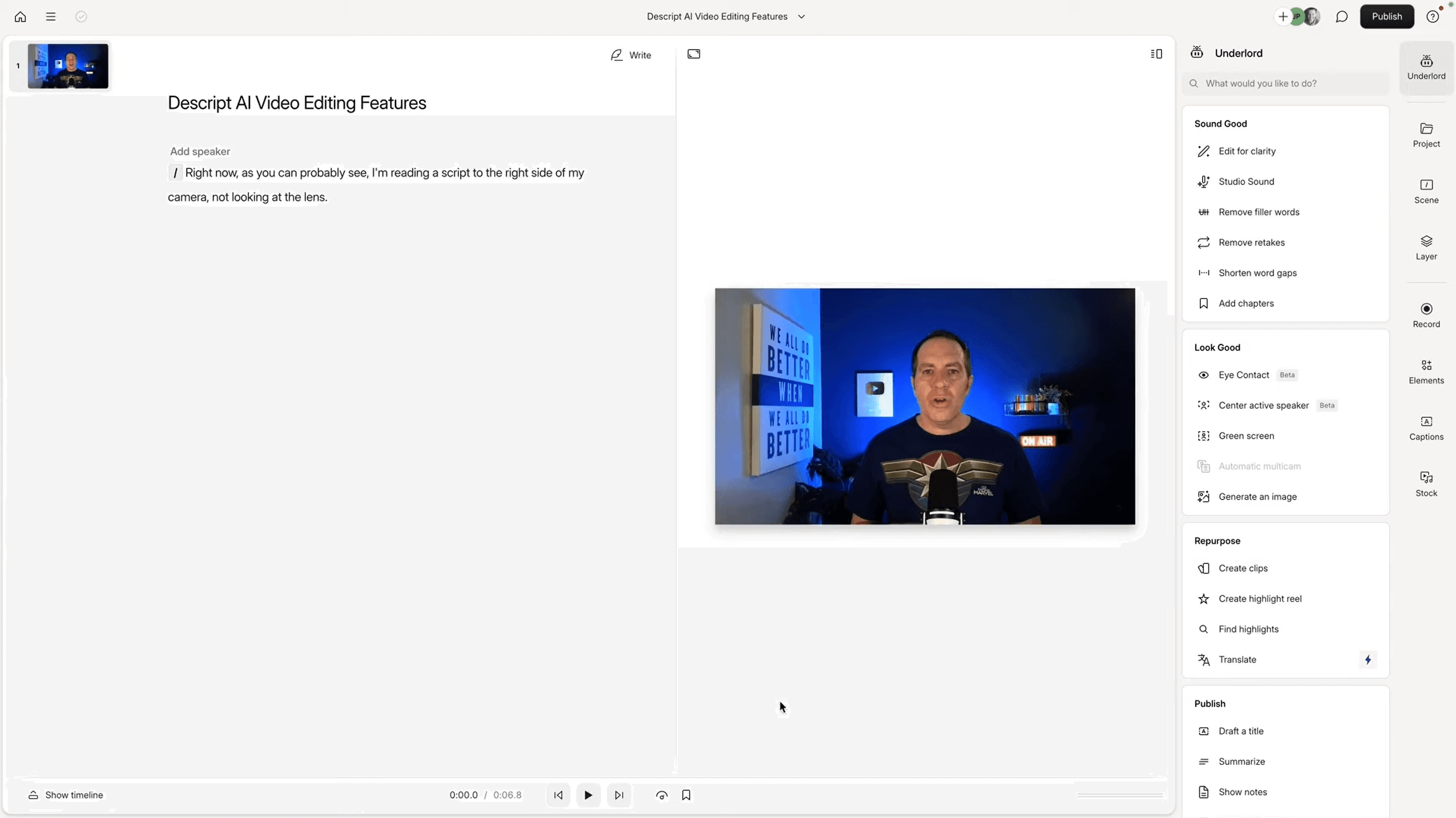
This is the feature that defines Descript. Your video's transcript appears on the left side of the screen. You edit the text, and the video edits itself to match. Want to cut a section? Highlight the text and press delete. Want to rearrange your video? Cut and paste paragraphs. Want to split your video into scenes? Add forward slashes in the transcript.
For anyone who has ever spent hours dragging clips around a timeline in Premiere Pro or Final Cut, this feels like magic. The learning curve is essentially zero because you already know how to edit a text document. Everything you do in the transcript is reflected in the video preview and timeline below.
AI Filler Word and Retake Removal
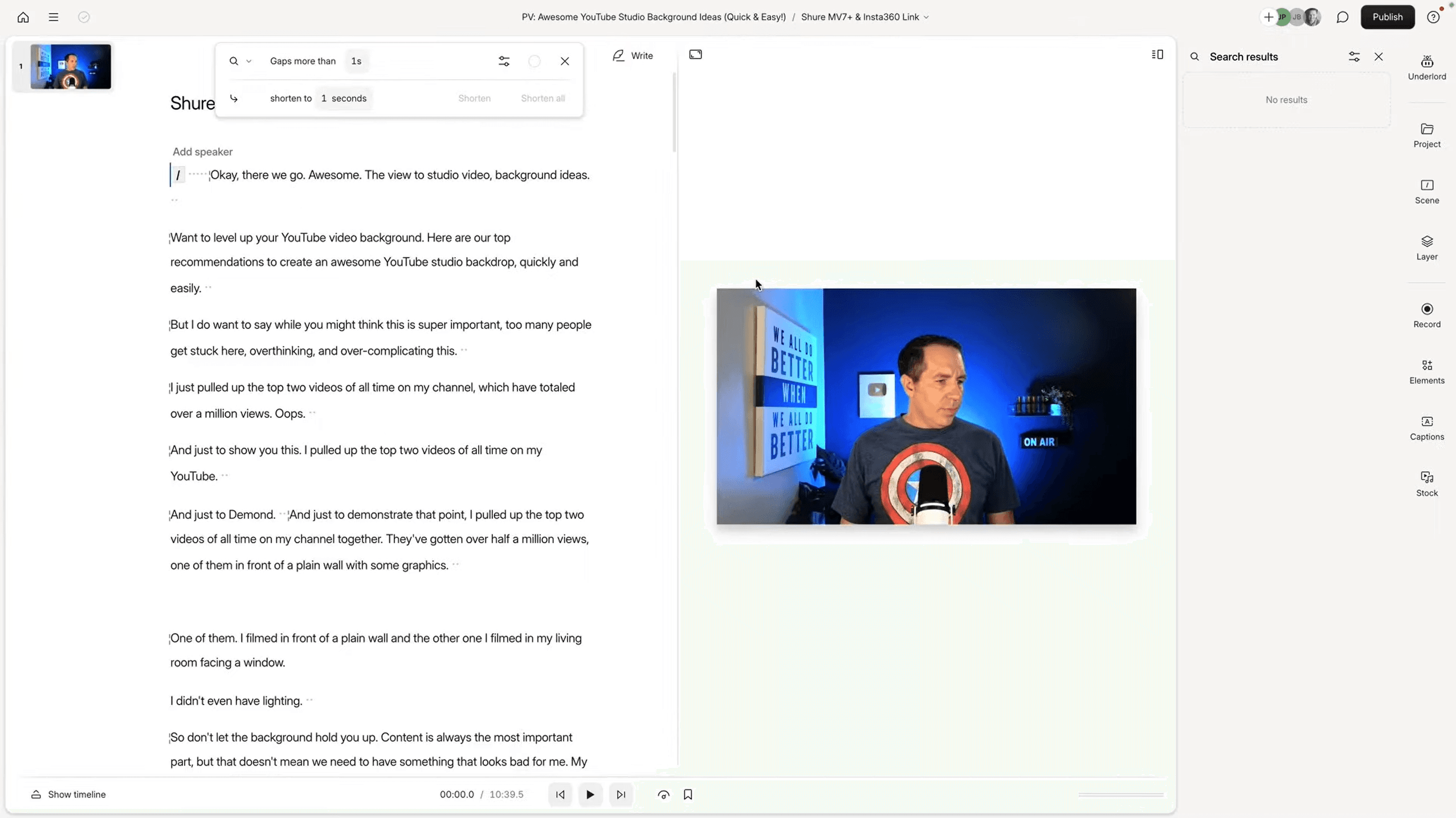
After uploading a video, the first thing most Descript users do is run the AI cleanup tools. The filler word removal scans your entire transcript and finds every um, uh, like, you know, and repeated word. You can review each one or remove them all with one click.
The retake detection is even more impressive. If you recorded yourself saying the same sentence twice (because you messed up the first time), Descript finds those retakes and lets you choose which version to keep. It strikes through the deleted version so you can still see what was there in case you want to bring it back. This alone saves significant editing time.
Word Gap Shortening
Descript can find every silence in your video and shorten them to a duration you choose. If you want a fast-paced, snappy video with no dead air, you can set gaps to 0.2 seconds and click shorten all. The AI handles the rest. This is the kind of editing that would take 30+ minutes to do manually in a traditional editor.
Studio Sound (AI Audio Enhancement)
Studio Sound takes your audio and processes it to sound like it was recorded in a professional studio. Even if you are using a cheap microphone or recording on your phone, Studio Sound makes a noticeable difference. You can adjust the intensity from 0% to 100% depending on how much processing you want. Most users find 50-70% works well with a decent microphone.
Layouts and Scene Templates
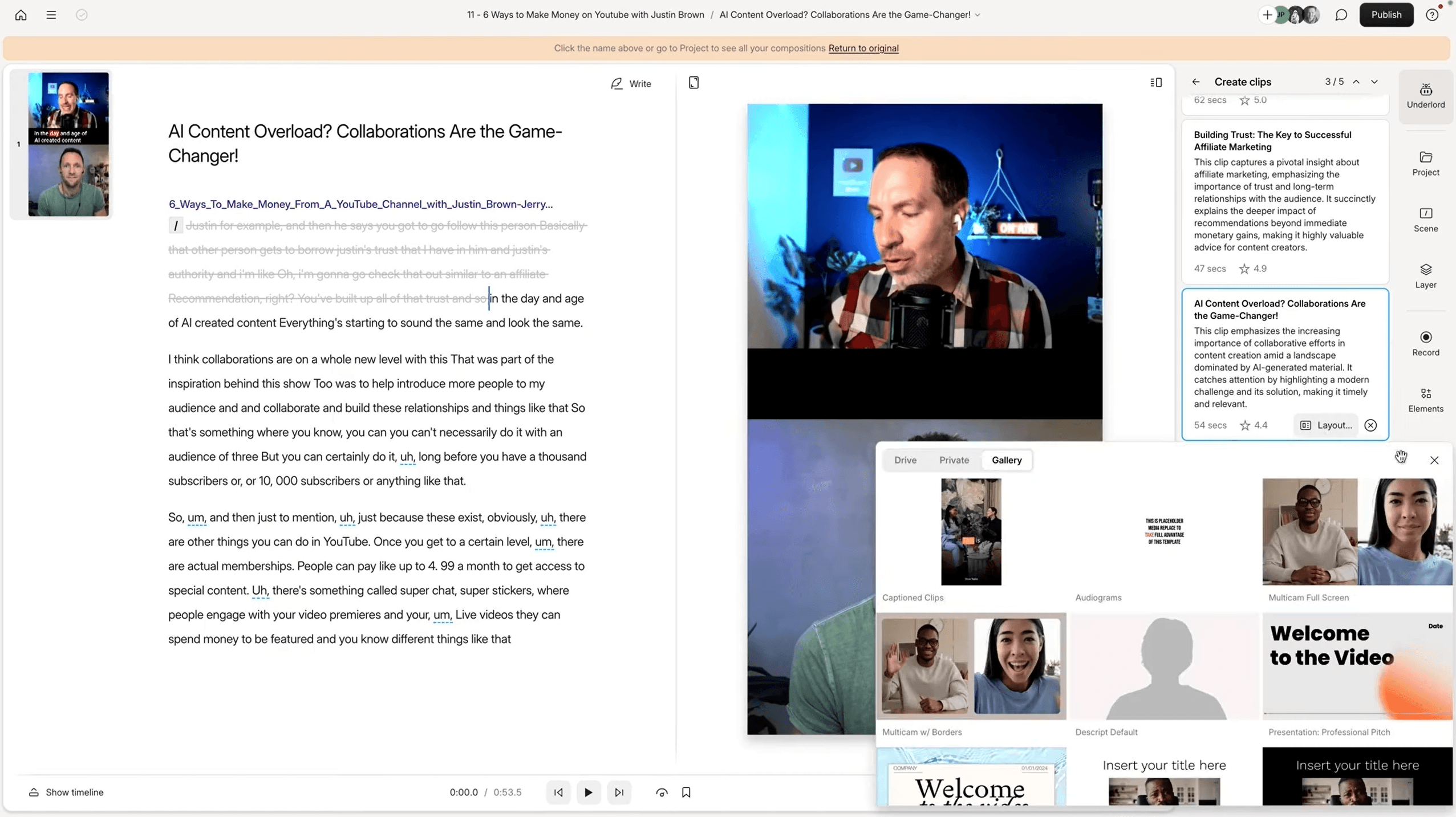
Descript includes a library of pre-built layouts that you can apply to any scene in your video. These include intro templates, chapter titles, name plates, text overlays with animations, split-screen layouts, zoom effects, and caption styles. You apply them by selecting text in your transcript and choosing a layout. No keyframing, no motion graphics knowledge required.
You can customize the fonts, colors, and positioning to match your brand, then save your custom layouts for reuse across all future videos. This is how creators maintain consistent branding without hiring a designer.
Underlord AI Assistant
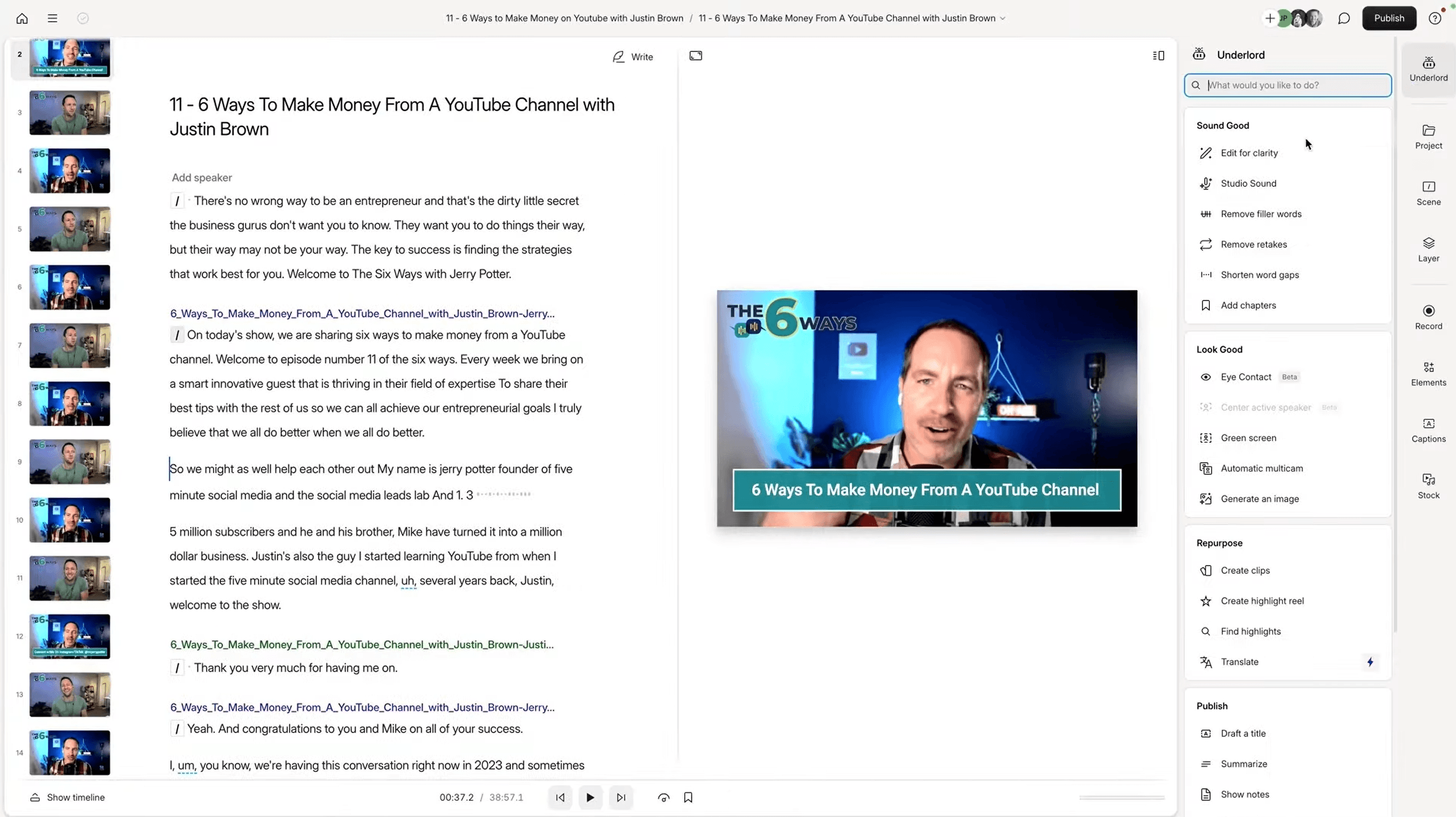
Underlord is Descript's built-in AI that goes beyond simple cleanup tools. You can have a conversation with it about your video. Tell it your topic, audience, and platform, and it will suggest improvements. Ask it to make your video more engaging and it will add B-roll clips, text overlays, transitions, and scene changes automatically.
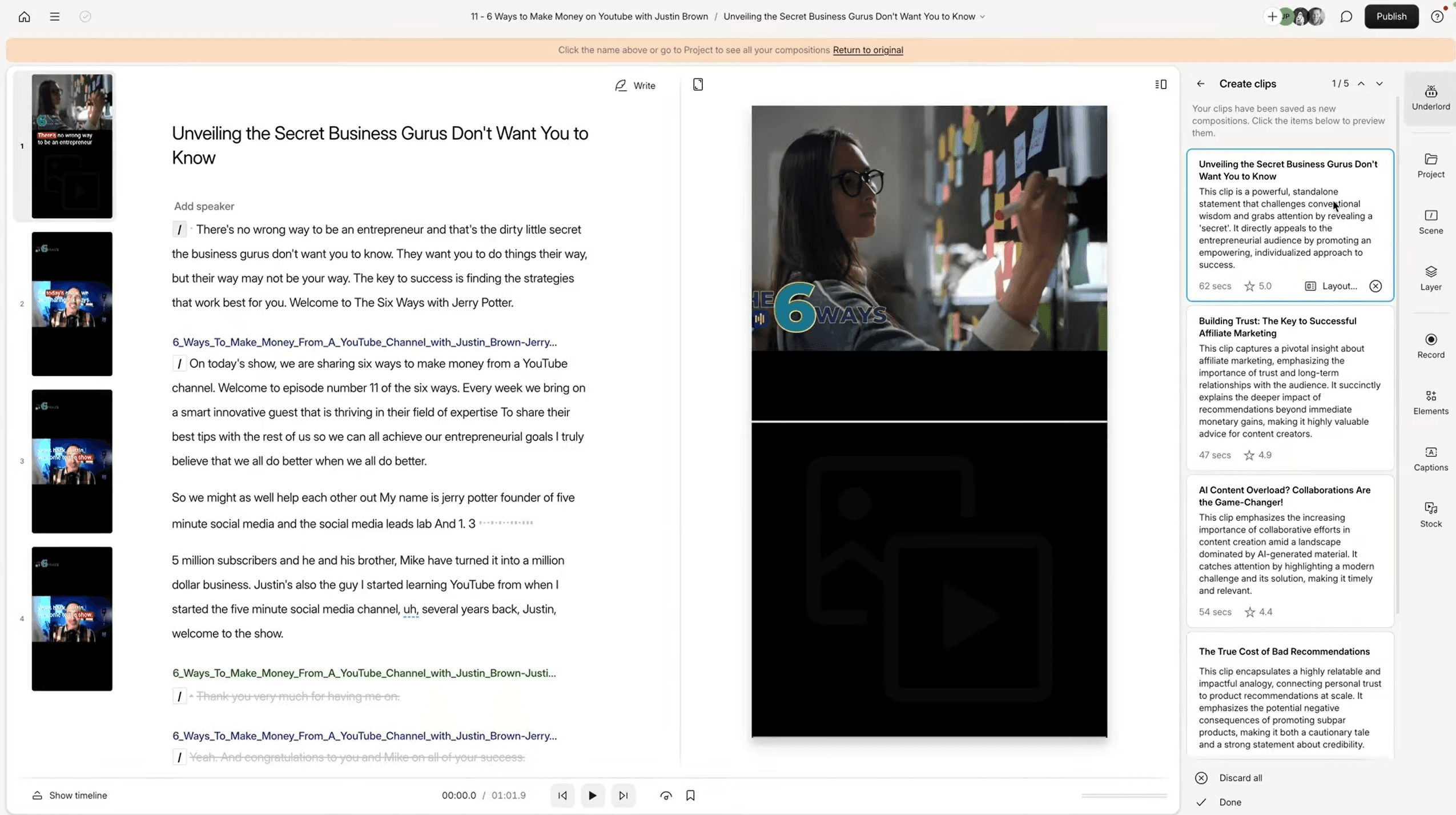
Underlord can also generate timestamps and chapters for YouTube videos, draft social media posts based on your video content, summarize your video, and create short-form clips from your most engaging moments. The clip creation feature picks viral- worthy sections and formats them for Instagram Reels, TikTok, or YouTube Shorts.
AI Voice Regeneration
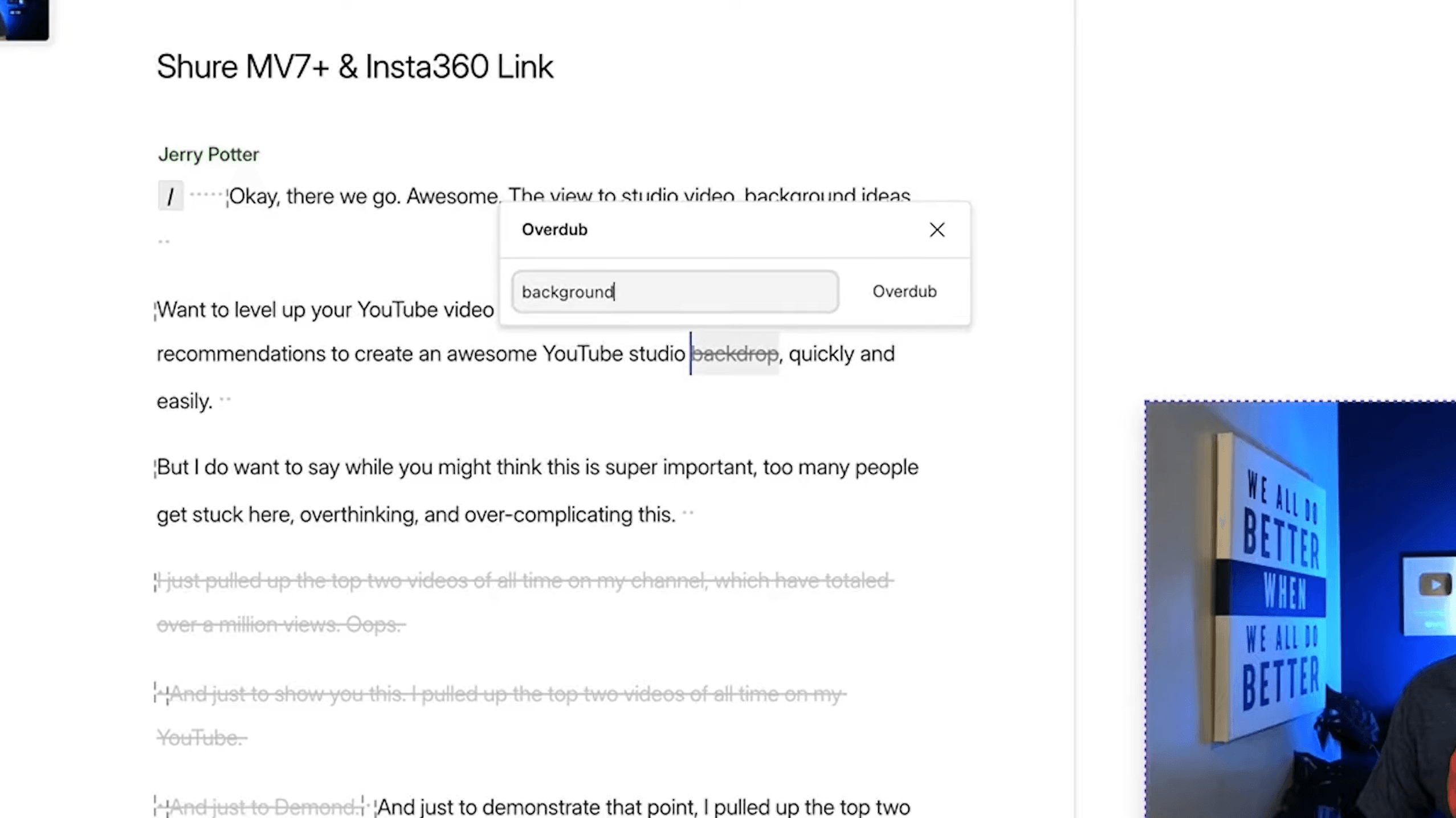
If you accidentally say the wrong word or number, Descript can regenerate it in your voice using AI. You highlight the word, type what you meant to say, and Descript synthesizes the correction in your voice. You do need to authorize your voice first by recording a short training sample. The quality is impressive enough that most viewers would not notice the difference.
Green Screen Without a Green Screen
Descript can remove your background in real time without needing a physical green screen. You select a scene, click the green screen option, and it removes the background. You can then add slides, B-roll, or any image behind you. This is useful for tutorials, presentations, and course content.
Screen Recording
You can record your screen, camera, or both directly inside Descript. The recording is automatically transcribed as you go. You can choose to appear as a circle, square, or full frame alongside your screen recording. This makes Descript a complete tool for tutorial creators who need screen recordings with voiceover.
Elements and B-Roll
The elements panel lets you add text, shapes, circles, arrows, timers, and rings to your video. The media library includes royalty-free GIFs, images, videos, and sound effects that you can drag into any scene. For B-roll, you can search the stock library by keyword and drop clips directly into your timeline.
Music and Sound Effects
Descript includes a library of royalty-free music and sound effects. You can search by mood, drag tracks into your timeline, adjust volume, and add fade-ins and fade-outs. The sound effects library includes common options like clicks, whooshes, and transitions that help make your video feel more polished.
Captions
Since Descript already has a full transcript of your video, adding captions is one click. You can apply captions to the entire video or specific scenes. Caption styles are customizable and you can export caption files separately for platforms that support them.
Automatic Multicam Editing
If you record interviews or podcasts with multiple cameras, Descript can automatically switch between camera angles based on who is speaking. You upload both video files, apply the multicam feature, adjust a few settings, and Descript splits the video into scenes with automatic camera switches. What would normally take an hour of manual multicam editing takes about 5 seconds.
Highlight Reel Generator
Descript can analyze your entire video and generate a highlight reel at whatever duration you choose. Set it to 60 seconds for a trailer, pick a layout style, and the AI pulls the most engaging moments into a standalone clip. This is useful for creating podcast trailers, course previews, or event recap videos without manually scrubbing through footage.
How Creators Use Descript
- YouTubers: Record, edit text-based, add layouts and B-roll, export in 4K, generate timestamps and clips for Shorts
- Podcasters: Record, clean up audio with Studio Sound, remove filler words, export audio and transcript separately
- Course creators: Screen record tutorials, add annotations and text overlays, create chapters, export polished modules
- Coaches and consultants: Record client-facing content, add branding with layouts, share via Descript web links
- Social media managers: Use Underlord to generate short-form clips from long-form videos, add captions, export for Instagram, TikTok, and LinkedIn
- Marketing teams: Create product demos, ad content, and internal training videos without professional editing skills. For more marketing tools, we review several options
Who Is Descript Best For?
- Beginners who want to edit video without learning a traditional editor
- YouTubers and podcasters who want to speed up their editing workflow
- Solo creators who do everything themselves and need an all-in-one tool
- Course creators who need screen recording plus editing in one place
- Teams that want collaborative editing with brand consistency
Who Should Skip Descript?
- Professional editors who need advanced color grading, motion graphics, or multi-track compositing (Premiere Pro or DaVinci Resolve is better for that)
- Filmmakers working with large multi-camera productions
- Users who only need basic transcription and nothing else (a dedicated transcription tool would be cheaper)
What We Like
- Text-based editing is genuinely faster than timeline editing for most creators
- AI filler word and retake removal saves hours per video
- Word gap shortening makes videos snappy with one click
- Studio Sound makes any microphone sound professional
- Underlord AI can add B-roll, layouts, and effects automatically
- AI voice regeneration fixes mistakes without re-recording
- Built-in screen recording with webcam overlay
- Layouts and scene templates maintain brand consistency
- Free plan available to test before paying
- Generates timestamps, clips, and social posts from your video
- Royalty-free stock media library included on Creator plan
What Could Be Better
- Not suitable for advanced motion graphics or VFX work
- AI retake detection does not always pick the best take
- Eye contact AI fix is noticeable at close inspection
- Hobbyist plan is limited to 1080p (need Creator for 4K)
- Desktop app runs better than web version
- Caption styles are decent but not as customizable as dedicated tools
- Pricing is on the higher side compared to basic editors like CapCut
Descript Pricing
Descript offers a free plan and four paid tiers. Annual billing saves up to 35% compared to monthly.
Hobbyist
- 10 hours of media per month
- 400 AI credits/month
- 1080p watermark-free export
- Underlord AI co-editor
- Studio Sound, filler word removal
Creator
- 30+ hours of media per month
- 800+ AI credits/month
- 4K watermark-free export
- Full Underlord with 20+ AI tools
- Unlimited royalty-free stock media
- AI video generation
Business
- 40+ hours of media per month
- 1,500+ AI credits/month
- Translation/dubbing in 30+ languages
- Custom AI avatar generation
- Brand Studio for teams
- Priority support with SLA
The free plan gives you 60 minutes of media and 100 one-time AI credits to test the platform. It exports in 1080p with a Descript watermark. It is useful for testing but not for publishing content.
The Creator plan at $24/month is the best value for most creators. It includes 30+ hours of media, 4K export, full Underlord access with 20+ AI tools, and unlimited stock media. The Business plan at $50/month adds team features, custom AI avatars, and translation into 30+ languages.
Is Descript Worth $24 a Month?
If you are creating video or podcast content regularly, the answer is yes. Here is the math: a freelance video editor charges $30-100+ per video. Even a basic editor on Fiverr runs $15-25 per video. If you publish weekly, that is $60-400 per month on editing alone.
Descript's Creator plan at $24/month lets you edit unlimited videos yourself, faster than a traditional editor. The AI filler word removal, retake detection, and gap shortening handle the tedious work. The layouts and Underlord handle the creative work. For most solo creators, Descript pays for itself with the first video you edit each month.
Where it stops making sense: if you only create one video every few months, the Hobbyist plan at $16/month or even the free plan might be enough. And if you need advanced VFX or color grading, you will still need a traditional editor on top of Descript. For tools that complement your content workflow, check our ElevenLabs review for AI voiceovers.
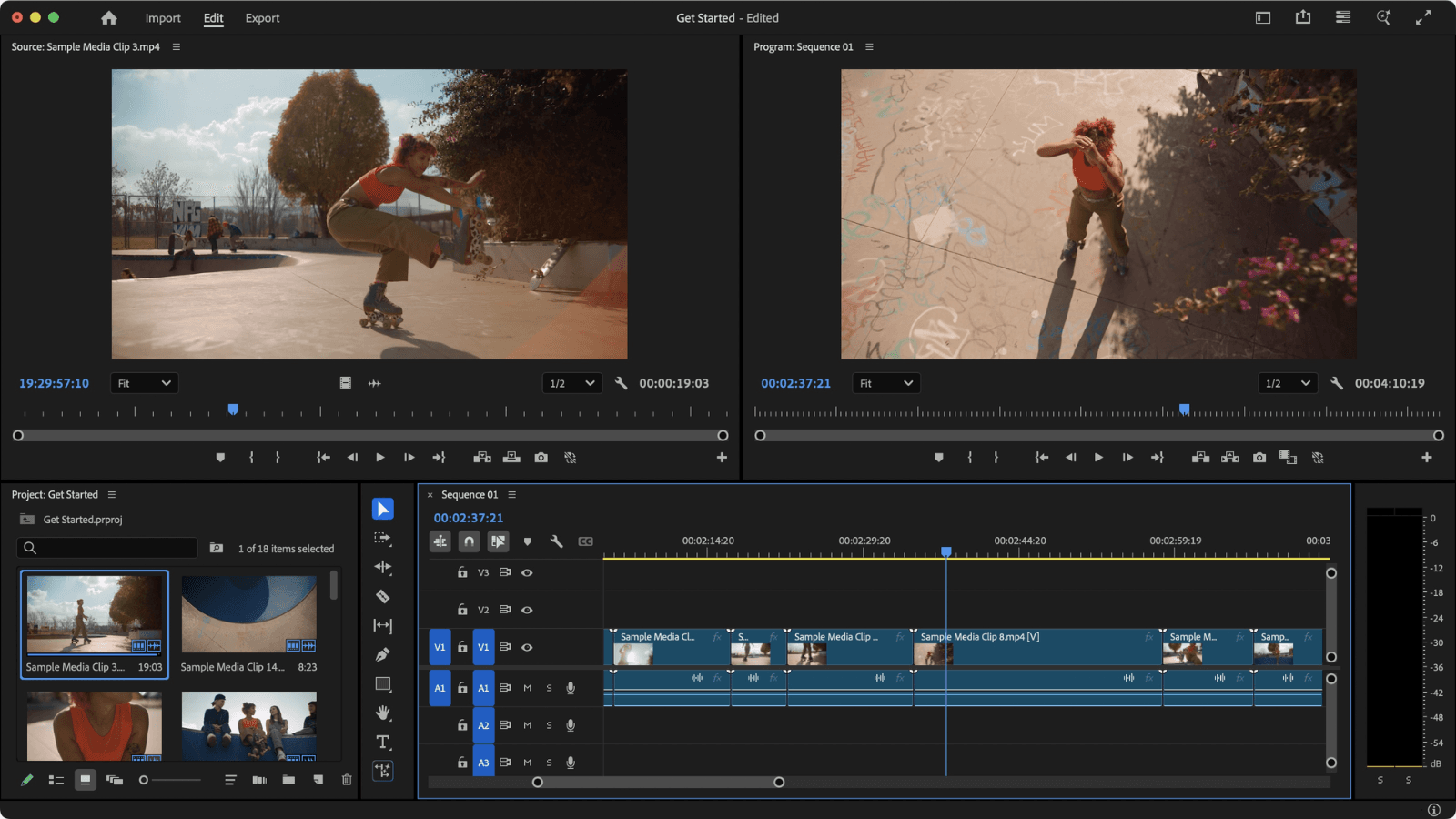
Descript vs Premiere Pro: Do You Still Need a Traditional Editor?
This is the question most creators ask. The honest answer: it depends on what you are creating.
Descript wins for talking-head videos, podcasts, tutorials, course content, and any video where the primary content is someone speaking. The text-based editing is faster for this type of content. The AI cleanup tools have no equivalent in Premiere Pro. And the learning curve is dramatically lower.
Premiere Pro wins for cinematic work, music videos, complex multi-camera productions, and anything that requires advanced color grading, motion graphics, or VFX. These are areas where Descript is simply not designed to compete.
Many creators actually use both. They rough-cut in Descript (removing filler words, retakes, and gaps) and then export to Premiere for final polish. This hybrid workflow gives you the speed of Descript with the power of a professional editor.
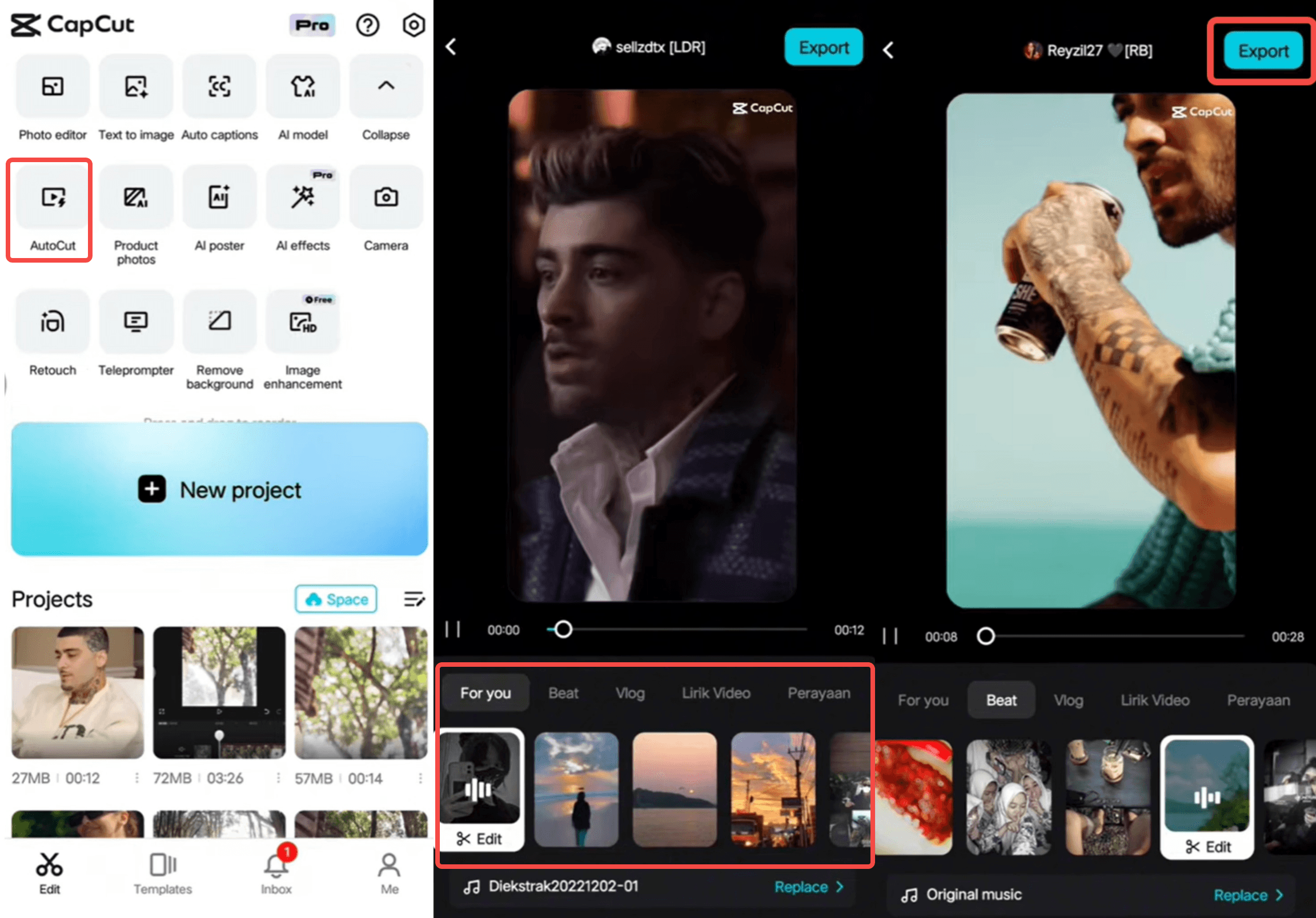
Descript vs CapCut vs Premiere Pro: Full Comparison
| Feature | Descript | CapCut | Premiere Pro |
|---|---|---|---|
| Best For | Creators who talk to camera | Short-form social content | Professional video production |
| Editing Style | Text-based (edit transcript) | Timeline-based | Timeline-based |
| AI Filler Word Removal | Yes (automatic) | No | No |
| AI Retake Detection | Yes | No | No |
| Studio Sound (AI Audio) | Yes | Basic | Manual (Adobe Podcast) |
| Screen Recording | Built-in | No | No |
| AI Voice Regeneration | Yes | No | No |
| 4K Export | Creator plan ($24/mo) | Free | Yes |
| Color Grading | Basic | Basic | Professional |
| Price | $16-50/mo | Free / $8-15/mo | $23/mo |
Ready to try Descript?
Start with the free plan. Upload a video and see how text-based editing changes your workflow.
Frequently Asked Questions
Is Descript free?
Yes. Descript has a free plan with 60 minutes of media and 100 one-time AI credits. It exports in 1080p with a watermark. Good for testing, not for publishing.
Is Descript good for YouTube?
Yes. Descript is one of the best editors for YouTubers who do talking-head videos, tutorials, and podcasts. The AI tools speed up editing significantly and the timestamp generation feature is built specifically for YouTube.
Is Descript better than Premiere Pro?
For talking-head videos and podcast content, Descript is faster and easier. For cinematic work, music videos, and complex productions, Premiere Pro is more capable. Many creators use both: Descript for rough cuts and Premiere for final polish.
Is Descript better than CapCut?
They serve different needs. Descript is better for long-form content, podcasts, and AI-powered editing. CapCut is better for short-form social media content and is cheaper (has a free tier with more features). If you mainly create YouTube videos or podcasts, Descript is the stronger choice.
How does text-based editing work?
Descript transcribes your video automatically. The transcript becomes your editing interface. Delete text and the corresponding video is removed. Move text around and the video reorders. It works exactly like editing a Google Doc.
Can Descript remove filler words automatically?
Yes. Descript scans your transcript and identifies every um, uh, like, you know, and repeated word. You can review them individually or remove them all with one click.
What is Underlord?
Underlord is Descript's AI assistant. It can analyze your video, suggest improvements, add B-roll and text overlays automatically, generate short-form clips, create timestamps, draft social media posts, and summarize your content.
Can I regenerate words in my voice?
Yes. Descript can synthesize corrections in your voice using AI. You highlight the wrong word, type the correction, and Descript generates the audio to match your voice. You need to authorize and train your voice first.
Does Descript work for podcasts?
Yes. Descript was originally built as a podcast editor before expanding to video. It handles audio editing, transcript generation, filler word removal, Studio Sound enhancement, and audio export for all podcast formats.
What is the best Descript plan?
The Creator plan at $24/month is the best value. It includes 30+ hours of media, 4K export, full Underlord access, and unlimited stock media. The Hobbyist plan at $16/month works if you only need 1080p and fewer AI credits.
What are the limitations of Descript's free plan?
The free plan gives you 60 minutes of media, 100 one-time AI credits (they do not refresh monthly), and exports in 1080p with a Descript watermark. You do not get access to Underlord, advanced AI tools, or stock media. It is enough to test the platform but not practical for publishing content regularly.
Is Descript worth it for podcasters?
Absolutely. Descript was originally a podcast editor before it expanded to video. The Studio Sound feature alone can transform phone-quality audio into professional-sounding recordings. Add in automatic filler word removal, transcript editing, and easy audio export and it is one of the most efficient podcast editing tools available.
Can Descript do multicam editing?
Yes. Descript has an automatic multicam feature that switches camera angles based on who is speaking. Upload your camera files, apply the feature, and it creates the cuts for you in seconds. This is useful for interview podcasts and co-hosted shows.
What Creators Are Saying
"Descript cut my editing time in half. The filler word removal and gap shortening alone are worth the subscription."
YouTuber, via Trustpilot
"Great for podcasts and talking-head content. Not powerful enough for complex video projects, but that is not what it is designed for."
Podcast host, via G2
How We Reviewed Descript
We evaluated Descript based on editing speed, AI tool accuracy, ease of use, output quality, pricing value, and how it compares to both traditional editors and AI-powered alternatives. Our assessment includes hands-on editing, analysis of user reviews on Trustpilot and G2, and research into current features and pricing.
Our Verdict
Descript is the best video editor for creators who talk to camera. The text-based editing, AI cleanup tools, and Underlord assistant make it possible to go from raw footage to polished video faster than any traditional editor. If you create YouTube videos, podcasts, or courses, Descript should be your first choice.
Best for: YouTubers, podcasters, course creators, and anyone who wants professional video editing without learning Premiere Pro.